
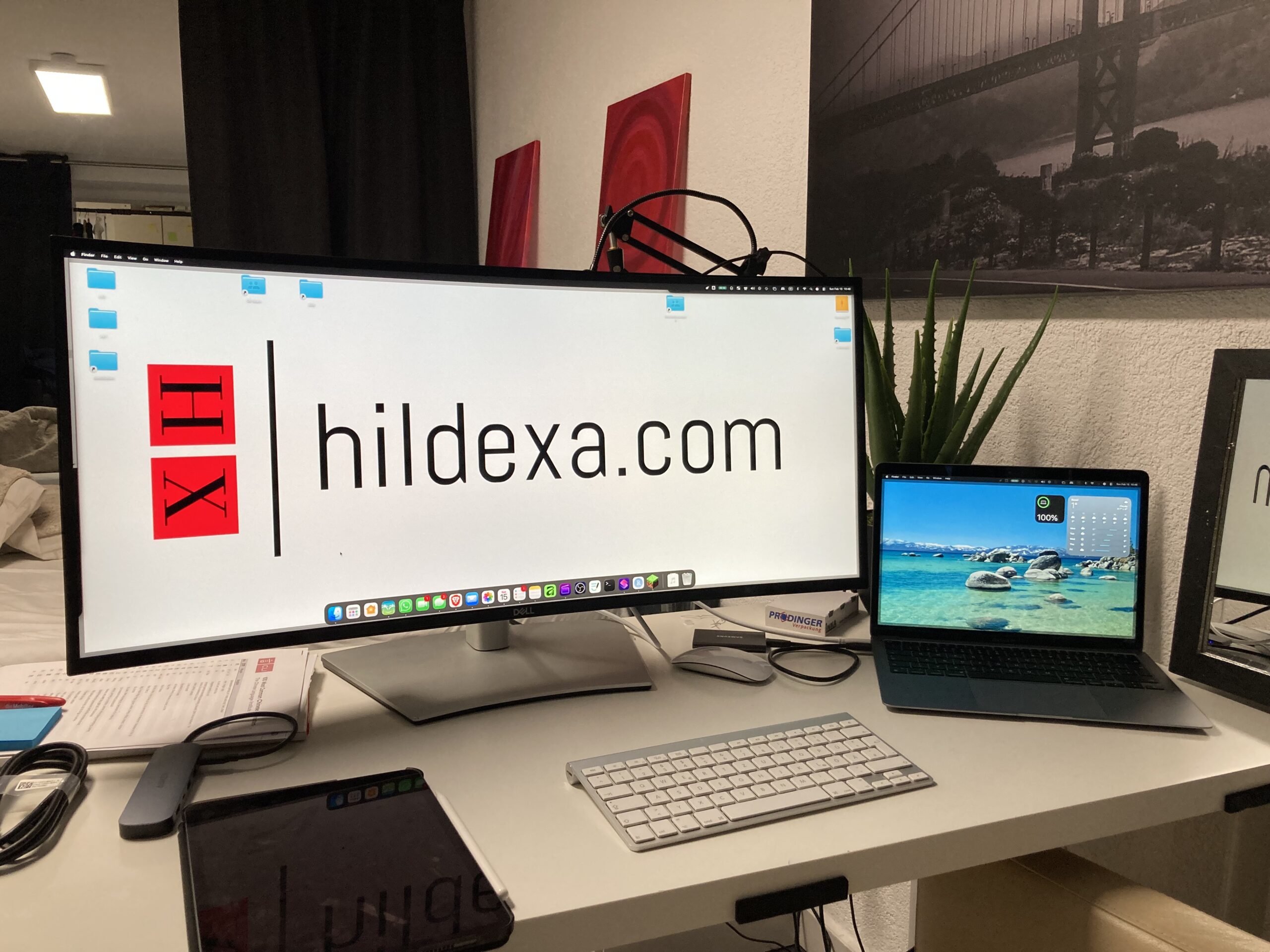
Escaping the Small Screen Trap
We’ve all been there: drowning in a sea of open tabs, buried under a dozen windows on a laptop screen that feels like it’s closing in on you. For years, the “pro” solution was to daisy-chain a mess of smaller monitors, but I’ve always found that a single, massive panel is a better use of your hard-earned cash. It’s about digital real estate – having enough room to breathe without the bezel gaps and cable nightmares of a multi-screen rig.
My curiosity about the Dell UltraSharp U4321WE wasn’t driven by marketing fluff; it was a physical necessity. I found myself literally moving stuff away and clearing my desk just to make space for this 43-inch slab of tech. I didn’t need “future-proofing” at a flagship price; I needed a tool that worked. I scouted a unit that had some “use marks” on the casing—the kind of cosmetic wear that scares off the casual buyer but translates to an eBay steal for me. As long as the panel itself had zero issues (which it did), I’m happy to take the discount. With the desk finally cleared, I was ready to see if this iron-heavy beast lived up to the DIY hype.
Sturdy Iron vs. Plastic Fluff
If a monitor is going to dominate my workspace, I don’t want it built like a cheap toy. I value “heft.” In a market saturated with flimsy plastic stands and useless RGB lighting, this Dell feels refreshingly mechanical. It’s toughly built and super sturdy – the kind of hardware that makes you feel safe knowing it’s not going to tip over if you bump the desk.
The assembly process is a straightforward, hands-on affair. You fold the box open, pop the mount into the back of the panel. There’s a distinct, satisfying “click” when the monitor attaches to the stand. I had to give it a “one-armed lift” to get it onto the desk, which really highlights the solid build quality.
Inside the Box:
- Power cable
- HDMI cables (2 included)
- DisplayPort cable
- USB-C cable
The stand is surprisingly agile for something this size; you can turn it, tilt it, and match it to your height with ease. Now that it’s physically anchored, it’s time to tackle the complexities of digital connectivity.
Cables, Power, and the USB-C Trap
The dream is always a “one-cable setup” where your laptop gets juice and sends data through a single pipe. But modern port standards are a minefield for the unprepared. I actually made an 11-euro “cable mistake” by buying an extra USB-C cable because I wasn’t sure if the box would have what I needed. It turns out the shorter, “prettier” white cable I bought is actually a win – shorter cables usually offer better performance without the premium price of high-end long-distance cables.
The real headline here is the power delivery. This monitor puts out 90W through that USB-C port. While 64W handles a MacBook Air just fine, 90W is the sweet spot for a MacBook Pro. It essentially replaces your laptop’s charging brick, keeping your machine pinned at 100% even during heavy renders. I routed the cables through the back to keep the “productive chaos” in check and used the certified high-speed cables provided to avoid bottlenecking. Powering it up for the first time felt like finally getting the room to work properly, leading into the actual visual experience of this ginormous panel.
Pixels, Curves, and Productive Chaos
Moving from a 13-inch laptop to a 43-inch IPS canvas changes how you interact with your OS. It’s not just a big screen; it’s a 4K workspace that demands you rethink your layout. My first impression was that the curve was “slight,” but once I actually sat down and got it adjusted to my eye level, I realized the curve is way more pronounced and functional than I expected. It keeps the edges readable without making you crane your neck.
Real-World Testing:
- Final Cut Pro: The timeline is absolutely massive. It “submerges” you in the edit, though you’ll find yourself doing a lot of “mouse traveling” to get from the inspector to the media bin.
- Minecraft: This isn’t a gaming rig, but it’s immersive. I had to turn down the shaders and dial back the settings to get it “way smoother,” but once optimized, you feel completely submerged in the world.
- General Productivity: This is the monitor’s bread and butter. You essentially get two full-size screens side-by-side. The high DPI scaling keeps text sharp, which is critical for reading bank statements or tax documents.
Let’s be honest: this isn’t “Retina quality.” If you’re coming from a high-density MacBook screen, you’ll notice the pixels. Plus, the bezels are noticeably bigger than some of the newer, flashier models I’ve seen. But for a pragmatic professional, “more” pixels are almost always better than “perfect” pixels. However, that scale brings some technical friction you need to be ready to solve.
What the Spec Sheet Hides
To build real trust with anyone who works for a living, you have to talk about the friction points. The U4321WE has a few technical “gotchas” that you’ll need to DIY your way through to get a clean experience.
Troubleshooting Checklist:
- The 30Hz Lag: Out of the box, the mouse might feel like it’s moving through molasses. Check your display settings immediately. If it’s defaulted to 30Hz, switch it to 60Hz or you’ll go crazy.
- Color Calibration: Compared to a MacBook, the Dell can look “dimmer” or “darker.” I actually used Gemini to walk me through the OSD (On-Screen Display) settings to reset the colors and calibrate it to my liking – a solid modern tip for any DIYer.
- The Mouse Problem: Because the panel is so ginormous, you’ll need to go into your OS settings and crank up the tracking speed. Dragging a cursor across 43 inches of glass is a workout otherwise.
With these technical hurdles cleared, it’s time to decide if this iron-heavy slab belongs on your desk.
Utility Over Hype
The Dell UltraSharp U4321WE is a tool for the pragmatist. It’s for the person who cares about massive timelines and a sturdy stand rather than marketing buzzwords. If you can find one with a few “use marks” on the back for a steal, it’s an unbeatable value for a professional cockpit.
| Buy it if: | Avoid it if: |
| You need massive timelines and two-window multitasking. | You demand “Retina-perfect” color density out of the box. |
| You want a “one-cable” 90W setup that kills the laptop brick. | You have a tiny, cramped desk that can’t handle the “heft.” |
| You value a sturdy, iron-heavy stand that won’t wobble. | You are a hardcore gamer who needs high refresh rates. |
| You can handle a bit of DIY calibration to get the look right. | You want a “zero-bezel” flagship aesthetic. |
Is it worth every penny? Absolutely. It’s a sturdy, functional, no-nonsense upgrade that turns a cluttered desk into a productive workspace. It might take a little tinkering with the mouse speed and a Gemini-assisted color reset to get it perfect, but once you’re submerged in that 43-inch timeline, you’ll never want to go back to a small screen again.